The Four Roles#
Admin#
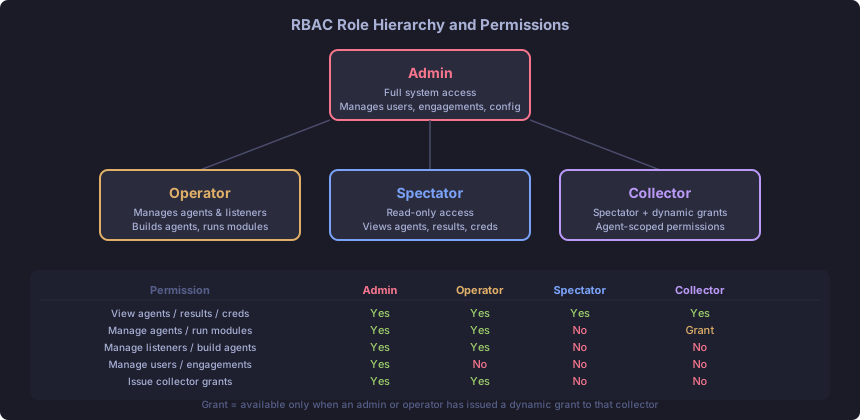
Admins have unrestricted access to the entire system.
- Create and manage user accounts (all roles)
- Create, archive, and import engagements
- Grant and revoke operator access to engagements
- Issue and revoke collector grants
- All operator capabilities
There must always be at least one admin. The system prevents you from demoting, deactivating, or deleting the last admin.
Operator#
Operators run engagements. They need explicit access grants per engagement (admins grant this).
Operators can:
- Deploy and task agents
- Create and manage listeners
- Build agents
- Load and unload modules
- Manage credentials
- Upload and download files
- Issue collector grants (scoped to specific agents, time-limited)
Operators cannot manage user accounts or create engagements — those are admin-only.
Spectator#
Spectators have read-only access to the engagements they are granted access to.
Spectators can:
- View agents, task results, listeners, credentials, builds
- View the audit log
- View file transfer records
Spectators cannot execute any actions — no tasks, no module loads, no file transfers.
Collector#
Collectors start with the same baseline as spectators (read-only). The difference is that operators can issue dynamic grants that temporarily elevate a collector’s permissions for specific operations on specific agents.
This role is designed for personnel who need to retrieve data from targets (files, credentials) but should not have the ability to issue arbitrary commands.
Permissions Matrix#
| Permission | Admin | Operator | Spectator | Collector |
|---|---|---|---|---|
| View agents, results, credentials | Yes | Yes | Yes | Yes |
| View audit log | Yes | Yes | Yes | Yes |
| View listeners and builds | Yes | Yes | Yes | Yes |
| Manage agents / run tasks | Yes | Yes | No | Grant only |
| Execute modules | Yes | Yes | No | Grant only |
| Upload / download files | Yes | Yes | No | Grant only |
| Manage listeners | Yes | Yes | No | No |
| Build agents | Yes | Yes | No | No |
| Manage credentials | Yes | Yes | No | No |
| Issue collector grants | Yes | Yes | No | No |
| Manage users | Yes | No | No | No |
| Manage engagements | Yes | No | No | No |
| Manage system configuration | Yes | No | No | No |
“Grant only” means the action is permitted only when an admin or operator has issued an explicit dynamic grant for that action scoped to specific agents.
Engagement Access#
Non-admin users must be explicitly granted access to each engagement. Without a grant, they cannot see the engagement’s objects.
Grant Access (admin)#
| |
Web UI: Admin page > click an operator > click “Grant Access” > select engagement.
Revoke Access#
| |
Revoking access does not delete the operator or their data — they just lose the ability to see that engagement.
Collector Dynamic Grants#
Operators and admins can issue temporary, scoped grants to collectors. This is the primary mechanism for giving a collector access to specific operations.
Issue a Grant via API#
| |
Parameters:
| Field | Description |
|---|---|
collector_id | UUID of the collector user |
permission | manage_agents (tasks, downloads) or execute_modules |
agent_ids | List of agent UUIDs to scope the grant, or null for all agents |
expires_at | ISO 8601 timestamp for expiry, or null for no expiry |
Revoke a Grant#
| |
Grant Best Practices#
- Scope to specific agents. Do not use
"agent_ids": nullunless the collector legitimately needs all agents. - Set an expiry. Even short-lived grants should expire. Match the expiry to the collection window.
- Revoke promptly. If a collector finishes their work early, revoke the grant immediately.
- Minimum necessary permission. Start with read-only and only issue grants when collection is actively happening.
Collection Workflow#
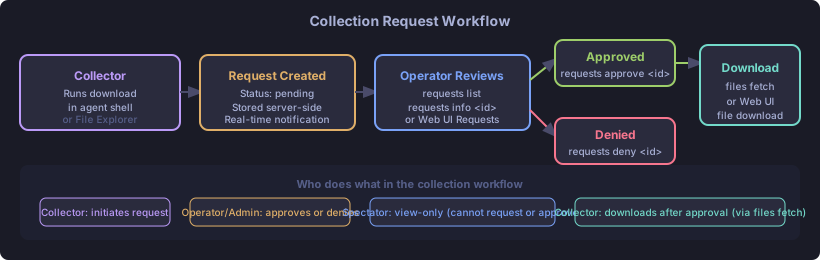
When a collector downloads a file from an agent, TantoC2 creates a collection request rather than delivering the file immediately. An operator or admin must review and approve the request.
Step 1: Collector Initiates a Download#
The collector enters the agent shell and downloads a file:
| |
The file is transferred to the teamserver. A collection request is created with status pending.
Web UI: The collector can also create requests from the File Explorer page by right-clicking a file.
Step 2: Operator Receives Notification#
The teamserver sends a real-time notification to connected operators and admins. The Web UI sidebar shows the pending count update.
| |
Step 3: Operator Reviews the Request#
| |
The info view shows: which agent the file came from, the remote path, file size, SHA-256 hash, who requested it, and when.
Web UI: Collection Requests page — filter to “pending”, expand each request to see details.
Step 4: Approve or Deny#
Approve:
| |
Deny:
| |
Web UI: Click “Approve” or “Deny” buttons on the request row.
Step 5: Collector Retrieves the File#
After approval, the collector can retrieve the file content:
| |
Web UI: The approved request shows a download button. Click it to download the file to the browser.
If denied, the collector sees the denial reason in their request list.
Role Best Practices#
During Engagement Setup#
- Admin: Set up the engagement, create user accounts, grant access.
- Operators: Connect and start working after access is granted.
- Collectors: Connect after operators grant engagement access. Issue dynamic grants only when collection is about to begin.
- Spectators: Grant access for supervisors or observers who need visibility without operational access.
During Active Operations#
- Keep collector grants scoped to agents that are actively being worked.
- Revoke grants when a collection window closes.
- The audit log captures every action with the exact principal — use it to track what each user did.
Multi-Operator Coordination#
- All operators must run
engagements use <name>to activate the shared engagement. - Tasks, file transfers, and credential additions from all operators appear in the same shared view.
- The audit log attributes every action to the individual user, even in a shared session.
Web UI Role Behaviour#
The web UI hides or disables controls based on your role:
- Spectators: Create buttons, execute buttons, start/stop/kill controls are hidden.
- Collectors: Same as spectators. Collection requests show a download button for approved items.
- Operators: Full controls for all granted engagements.
- Admins: Admin and Engagements pages are visible. Full controls everywhere.
Role-restricted API calls return 403 Forbidden with a descriptive message. The CLI surfaces this as an error.
Related Pages#
- Credential Management — credentials are also access-controlled
- Agent Management — file download workflow
- RBAC Architecture — technical design and implementation details